* Um Jawad*
New member
- إنضم
- 2009/01/25
- المشاركات
- 1,493
بسم الله الرحمن الرحيم
اللهم صلي على محمد وآل محمد
وانا ادور على صور مناسبه لتصاميم بعض الطلبات
حصلت على درس مرررره كيوت
وهو رسم على شريط
وحبيت تشاركوني فيه للأفاده
العفوا بنات طبعا الشرح بالأنجليزي
تفضلوا
الدرس روعه
1. Create a Strip (Vector Shapes)اللهم صلي على محمد وآل محمد
وانا ادور على صور مناسبه لتصاميم بعض الطلبات
حصلت على درس مرررره كيوت
وهو رسم على شريط
وحبيت تشاركوني فيه للأفاده
العفوا بنات طبعا الشرح بالأنجليزي
تفضلوا
الدرس روعه
First, create a strip with the Pen tool (either in Photoshop or Illustrator). We will use these shapes as a guideline and for masking purposes.

2. Photo Stack
Choose 3 photos of your choice and stack them together.

Warping (Photoshop Warp Tool)
Adjust the layer opacity to 40 or 50% so you can see the guideline underneath. Go to Edit > Transform > Warp. Now you should see a grid and 4 anchor points in the corner. To bending the image, simply drag the anchor points, direction points, or grid lines.

Repeat this step for the rest of the strip. Since this step is relatively simple and repeatitive, I’m not going to get into the details. Here are the screenshots of the steps:


4. Masking
Warping (Photoshop Warp Tool)
Adjust the layer opacity to 40 or 50% so you can see the guideline underneath. Go to Edit > Transform > Warp. Now you should see a grid and 4 anchor points in the corner. To bending the image, simply drag the anchor points, direction points, or grid lines.
Repeat this step for the rest of the strip. Since this step is relatively simple and repeatitive, I’m not going to get into the details. Here are the screenshots of the steps:
Organize the layers into groups (ie. strip 1, 2, 3, 4).

Load selection from the shapes you created in step 1 and add a layer mask for each group (so you get a perfect smooth curve).

5. Shadows
Load selection from the shapes you created in step 1 and add a layer mask for each group (so you get a perfect smooth curve).
In masked group 1, create a new layer above the strip. Use the Gradient tool and drag from the top to bottom to create a black gradient.

Repeat this step for the other strips.

6. Highlights
Repeat this step for the other strips.
To make highlighted and glossy areas: create a round glowing circle, compress it, and rotate it in the angle according to your strip’s direction.

7. Line Strokes
To make line strokes: load a selection of the mask, create a new layer, fill it with black, shift the selection to the left by 1 or 2 pixels, delete the selected area by pressing the Delete key.

8. Final Touches
To make the image look more interesting, desaturated the two strips in the back.

Bonus Tips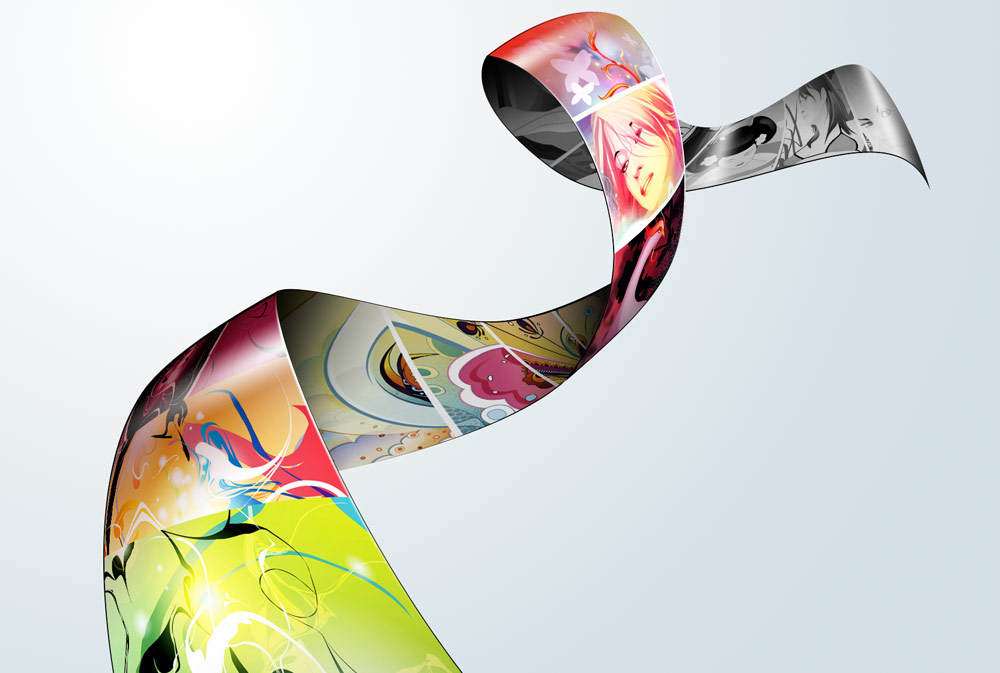
The Photoshop warp tool is very useful when creating any sort of twisting and bending graphic effects. The following examples illustrate some of the things that you can do with the warp tool. Have fun!

السموحه بنات لما ارجع للبيت راح اطبق الدرس لانه يحتاج CS3
السموحه بنات لما ارجع للبيت راح اطبق الدرس لانه يحتاج CS3


